Excel Formulas for Beginners: Step-by-Step Guide
If you are new to Microsoft Excel, you might have heard people say, “Just use a formula, it’ll make your work faster!” But when you’re starting out, Excel formulas can look confusing. Don’t worry—we’ll make it simple for you.
In this guide, we’ll show you excel formulas for beginners with easy explanations, real-life examples, and pro tips. By the end, you’ll feel confident to create and use formulas in your day-to-day tasks.
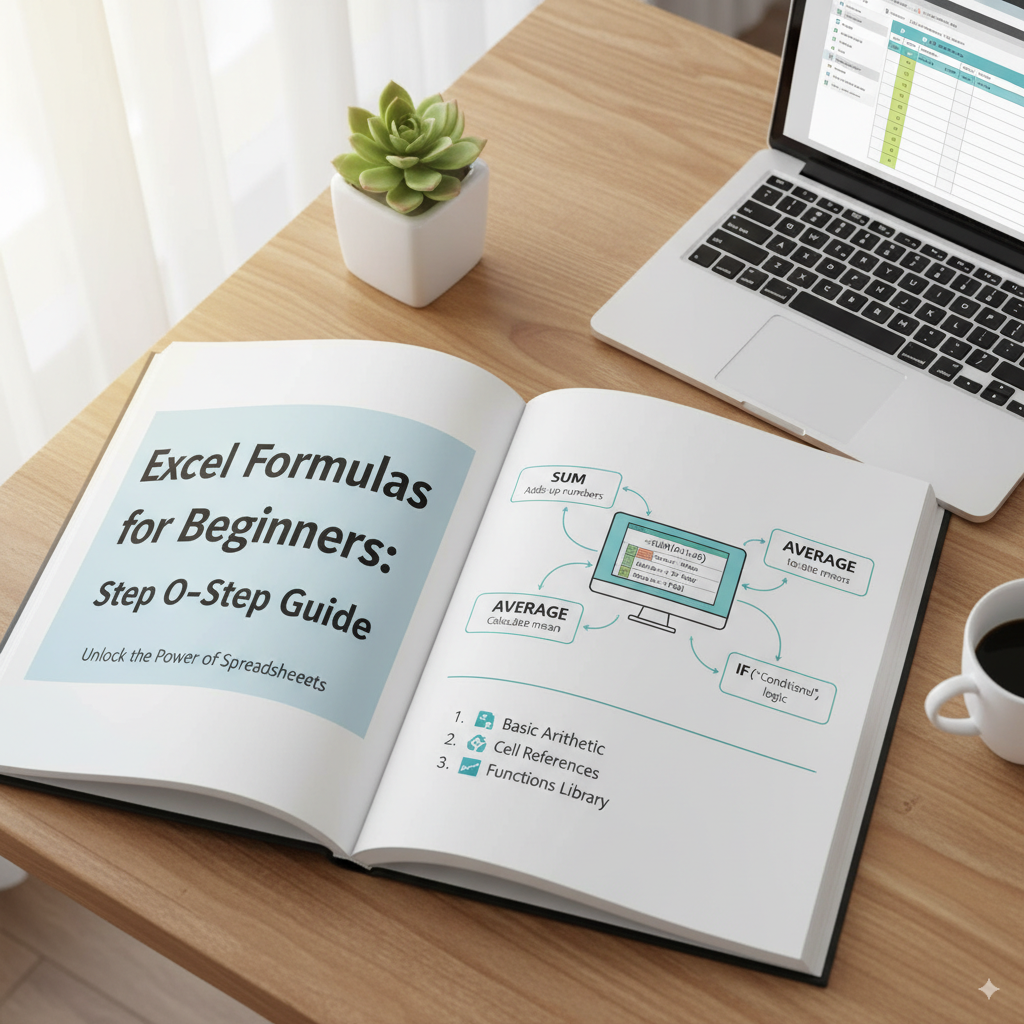
What Are Excel Formulas?
An Excel formula is simply an instruction you give to Excel to perform a calculation or task. Think of it like a smarter calculator that updates automatically when your data changes.
- A calculator only works with numbers you type in.
- Excel can store your data and automatically update results.
Example: If you type =5+3 in Excel, you’ll get 8. Using =A1+A2, Excel adds the numbers from the cells dynamically.
Why Learn Excel Formulas?
Learning Excel formulas saves time and reduces errors. For example:
- Students: Quickly calculate grades.
- Business owners: Track profits and losses.
- Employees: Prepare reports and budgets faster.
- Freelancers: Analyze client data in minutes.
Knowing excel formulas for beginners can turn hours of work into minutes.
Excel Formulas Basics
- All formulas start with = Example:
=A1+A2 - Use cell references instead of numbers Example:
=B1+B2 - Common operators: + (add), - (subtract), * (multiply), / (divide), ^ (power)
- Functions are built-in formulas Example:
=SUM(A1:A5)
Step-by-Step: How to Use Excel Formulas
Step 1: Addition
=A1+A2
Example: A1 = 50, A2 = 30 → Result = 80.
Step 2: Subtraction
=A1-A2
Example: A1 = 100, A2 = 40 → Result = 60.
Step 3: Multiplication
=A1*A2
Example: A1 = 20, A2 = 5 → Result = 100.
Step 4: Division
=A1/A2
Example: A1 = 100, A2 = 4 → Result = 25.
Step 5: Average
=AVERAGE(A1:A5)
Example: A1=10, A2=20, A3=30, A4=40, A5=50 → Result = 30.
Step 6: Percentage
(Part/Total)*100
Example: Score 45/50 → =(45/50)*100 → 90%
Step 7: AutoSum
Use the Σ AutoSum button:
1. Select the cell below numbers.
2. Click AutoSum.
3. Excel generates =SUM(A1:A10).
Common Excel Formulas for Beginners
| Formula | Purpose | Example |
|---|---|---|
| =SUM(A1:A10) | Adds numbers | 10+20+30=60 |
| =AVERAGE(A1:A10) | Finds average | (10+20+30)/3=20 |
| =MAX(A1:A10) | Finds largest number | 99 |
| =MIN(A1:A10) | Finds smallest number | 5 |
| =COUNT(A1:A10) | Counts numbers only | 5 cells → Result=5 |
| =IF(A1>50,"Pass","Fail") | Logical test | A1=60 → Pass |
| =TODAY() | Shows today's date | 24-09-2025 |
| =NOW() | Shows date & time | 24-09-2025 15:05 |
Real-Life Example: Monthly Expense Tracker
Track expenses easily:
| Category | Amount |
|---|---|
| Rent | 10,000 |
| Groceries | 4,500 |
| Electricity | 1,200 |
| Transport | 2,000 |
Formulas to use:
- =SUM(B2:B5)
- =MAX(B2:B5)
- =MIN(B2:B5)
Tips for Learning Excel Formulas Faster
- Practice with real data.
- Use shortcuts (Alt + = for AutoSum).
- Break down big formulas into smaller parts.
- Explore Functions Tab in Excel.
- Start with basics before moving to advanced formulas.
Common Errors in Excel Formulas (and Fixes)
- #DIV/0! → Division by zero.
- #NAME? → Misspelled formula.
- #VALUE! → Text instead of number.
- #### → Column too small; resize it.
Conclusion
Learning excel formulas for beginners is like learning the alphabet before reading a book. Start with basic formulas and expand gradually.
Excel formulas help students, professionals, and business owners save time and work smarter. Practice regularly to become an Excel pro!
✅ Next Step: Try creating a sheet and use the formulas discussed. For more Excel tutorials, visit Microsoft Excel official site.