Top 10 Excel Tips for Beginners (2025 Guide)
Excel tips for beginners can save you hours of work — ye practical tips aapki productivity instantly improve kar denge. Shortcuts, formulas, aur small tricks jo har beginner ko aani chahiye.
📘 Want to Master Excel Fast? Join 5000+ learners & become Excel Pro in 30 Days!
🚀 Enroll NowTop 50+ Excel Tips to Save Time 🚀
Excel ke ye 50+ practical tips aapki productivity instantly improve kar denge. Har beginner ko ye tricks aani chahiye!
1. Use AutoFill
Drag fill handle to copy formulas, sequences or custom lists.
2. Flash Fill
CTRL + E press karke Excel ko pattern samjhne do.
3. Freeze Panes
Headers ko scrolling me lock karne ke liye View > Freeze Panes use karo.
4. Remove Duplicates
Data tab me Remove Duplicates se instantly clean kar lo.
5. VLOOKUP
Ek column se doosre column me matching values nikalne ke liye use hota hai.
6. XLOOKUP
Modern aur flexible version of VLOOKUP.
7. Pivot Tables
Data summarize aur analyze karne ke liye best tool.
8. Quick Sum
ALT + = dabao aur SUM formula auto insert ho jayega.
9. Conditional Formatting
Automatically highlight karna values ko rules ke basis par.
10. Data Validation
Dropdown banakar controlled data entry karo.
11. Charts
Insert charts to visualize your data quickly.
12. Sparklines
Cell ke andar chota chart add kar sakte ho.
13. Named Ranges
Formula easy banane ke liye cell ranges ko name do.
14. Absolute vs Relative References
Use $ sign to lock rows/columns in formulas.
15. IF Function
Logical tests ke liye use karo (IF TRUE then... else...).
16. Nested IFs
Multiple conditions ke liye Nested IF use karo.
17. IFERROR
Error ko friendly text se replace karne ke liye.
18. CONCAT / TEXTJOIN
Multiple cells ke text ko combine karo.
19. LEFT / RIGHT
Text ke starting ya ending characters nikaalo.
20. MID
Text ke beech ka portion extract karo.
21. LEN
Text ki length count karne ke liye.
22. TRIM
Extra spaces remove karne ke liye.
23. PROPER / UPPER / LOWER
Text ka case format change karo.
24. SUBSTITUTE
Text ke andar ek word ko replace karne ke liye.
25. FIND / SEARCH
Text ke andar word ka position nikaalo.
26. TODAY & NOW
Aaj ki date ya current time insert karne ke liye.
27. TEXT Function
Dates aur numbers ko custom format karo.
28. ROUND / ROUNDUP / ROUNDDOWN
Numbers ko round off karne ke liye.
29. INT / MOD
Whole number aur remainder nikaalne ke liye.
30. RAND / RANDBETWEEN
Random numbers generate karo.
31. Filter & Sort
Data ko instantly filter aur sort karo.
32. Tables (CTRL + T)
Dynamic data ranges banane ke liye.
33. Remove Blank Rows
Go To Special > Blanks se delete karo.
34. Transpose
Rows ko columns me convert karna aur vice versa.
35. Goal Seek
Target values ke liye back calculation karna.
36. What-If Analysis
Scenario manager se multiple outputs test karo.
37. Protect Sheet
Password se data secure karo.
38. Freeze vs Split
Large datasets me multiple panes create karo.
39. Group & Ungroup
Outline tool se data collapse/expand karo.
40. Subtotal
Automatic summary add karne ke liye.
41. Remove Formatting
Clear All Formatting option use karo.
42. Hyperlinks
Webpage ya doosre sheet ko link karo.
43. Comments & Notes
Cells me notes ya collaboration ke liye use karo.
44. Track Changes
Collaboration ke liye changes monitor karo.
45. Shortcuts (CTRL + D, CTRL + R)
Formulas aur values ko quickly copy karo.
46. CTRL + Arrow Keys
Large datasets me fast navigation ke liye.
47. CTRL + SPACE / SHIFT + SPACE
Entire column ya row select karo.
48. Format Painter
Cell ka style instantly copy-paste karo.
49. Custom Number Formats
Special display ke liye [Red];[Green] formatting use karo.
50. Power Query
Advanced data cleaning aur transformation ke liye.
📘 Want to Master Excel Fast? Join 5000+ learners & become Excel Pro in 30 Days!
🚀 Enroll Now⚡ Learn Essential Excel Keyboard Shortcuts
Excel ke sare important keyboard shortcuts — categorized for easy learning. Productivity boost guaranteed 🚀
- Ctrl + N → New Workbook
- Ctrl + O → Open Workbook
- Ctrl + S → Save Workbook
- F12 → Save As
- Ctrl + P → Print
- Ctrl + Z → Undo
- Ctrl + Y → Redo
- Ctrl + C → Copy
- Ctrl + X → Cut
- Ctrl + V → Paste
- Arrow Keys → Move one cell
- Ctrl + Arrow → Jump to edge
- Home → Go to start of row
- Ctrl + Home → First cell (A1)
- Ctrl + End → Last used cell
- Page Up / Down → Scroll
- Alt + Page Up / Down → Move left/right screen
- Ctrl + Space → Select column
- Shift + Space → Select row
- Ctrl + A → Select all
- Shift + Arrow → Extend selection
- Ctrl + Shift + End → Extend to last used cell
- Ctrl + Shift + Home → Extend to first cell
- Ctrl + 1 → Format Cells dialog
- Ctrl + B → Bold
- Ctrl + I → Italic
- Ctrl + U → Underline
- Alt + H + A + C → Center align
- Alt + H + O + I → AutoFit column
- = → Start a formula
- Alt + = → AutoSum
- Shift + F9 → Calculate active sheet
- Ctrl + ` → Show formulas
- F4 → Toggle $ references
- Ctrl + T → Create table
- Alt + A + T → Filter toggle
- Ctrl + Shift + L → Apply filter
- Alt + D + F + F → Freeze panes
- Alt + N + V → Insert PivotTable
- Alt + J + T → PivotTable Tools
- F2 → Edit active cell
- F4 → Repeat last action
- Ctrl + ; → Insert date
- Ctrl + Shift + : → Insert time
- Ctrl + K → Insert hyperlink
📌 Freeze Panes for Easy Scrolling
Large Excel sheets me scroll karte waqt headers gayab ho jaate hain. Freeze Panes ka use karke top row ya left column ko fix karke data ko easily navigate kar sakte ho.
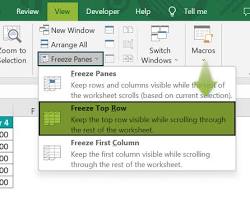
👉 How to Use Freeze Panes
View tab par click karo.
Freeze Panes dropdown select karo.
Option choose karo:
- Freeze Panes → Selected cell ke upar rows aur left columns fix.
- Freeze Top Row → Sirf top row fix.
- Freeze First Column → Sirf first column fix.
Ab scroll karne par headers hamesha visible rahenge ✅
📘 Want to Master Excel Fast? Join 5000+ learners & become Excel Pro in 30 Days!
🚀 Enroll Now📘 Master Basic Excel Formulas
Yahaan aapko Excel ke popular & useful formulas milenge (syntax + example ke saath). Niche ek All Formulas Library bhi milegi jo click karne par open hogi.
SUM
Syntax: =SUM(A1:A10)
Example: =SUM(5,10,15) → 30
AVERAGE
Syntax: =AVERAGE(A1:A10)
Example: =AVERAGE(5,10,15) → 10
COUNT
Syntax: =COUNT(A1:A10)
Example: =COUNT(10,"x",20) → 2
MAX
Syntax: =MAX(A1:A10)
Example: =MAX(5,10,25) → 25
MIN
Syntax: =MIN(A1:A10)
Example: =MIN(5,10,25) → 5
IF
Syntax: =IF(condition, value_if_true, value_if_false)
Example: =IF(A1>50,"Pass","Fail")
VLOOKUP
Syntax: =VLOOKUP(lookup_value, table_array, col_index, [range_lookup])
Example: =VLOOKUP(101,A2:D20,2,FALSE)
XLOOKUP
Syntax: =XLOOKUP(lookup_value, lookup_array, return_array)
Example: =XLOOKUP(5,A2:A10,B2:B10)
- ABS → Syntax: =ABS(-10) → Example: 10
- ACOS → Syntax: =ACOS(0.5) → Example: 1.047
- AND → Syntax: =AND(A1>0,B1<10) → Example: TRUE
- AVERAGEIF → Syntax: =AVERAGEIF(A1:A10,">5")
- CEILING → Syntax: =CEILING(4.3,1) → Example: 5
- CONCAT → Syntax: =CONCAT(A1,B1) → Example: ExcelTips
- DATE → Syntax: =DATE(2025,9,9) → Example: 09-Sep-2025
- DAY → Syntax: =DAY(TODAY())
- EDATE → Syntax: =EDATE(TODAY(),3)
- EXACT → Syntax: =EXACT("Excel","excel") → Example: FALSE
- FACT
Syntax: =FACT(number)
Example: =FACT(5) → 120 - FIND
Syntax: =FIND(find_text, within_text, [start_num])
Example: =FIND("c","Excel") → 3 - FIXED
Syntax: =FIXED(number, decimals, [no_commas])
Example: =FIXED(1234.567,2) → 1,234.57 - FLOOR
Syntax: =FLOOR(number, significance)
Example: =FLOOR(7.9,1) → 7 - FV
Syntax: =FV(rate,nper,pmt,[pv],[type])
Example: =FV(5%/12,60,-100) → 6,801.91 - HLOOKUP
Syntax: =HLOOKUP(lookup_value,table_array,row_index,[range_lookup])
Example: =HLOOKUP(101,A1:Z3,2,FALSE) - HOUR
Syntax: =HOUR(serial_number)
Example: =HOUR("14:45") → 14 - IF
Syntax: =IF(condition,value_if_true,value_if_false)
Example: =IF(A1>50,"Pass","Fail") - INDEX
Syntax: =INDEX(array,row_num,[column_num])
Example: =INDEX(A1:C10,2,3) - INT
Syntax: =INT(number)
Example: =INT(5.9) → 5 - ISBLANK
Syntax: =ISBLANK(value)
Example: =ISBLANK(A1) - ISNUMBER
Syntax: =ISNUMBER(value)
Example: =ISNUMBER(123) → TRUE - LEFT
Syntax: =LEFT(text,num_chars)
Example: =LEFT("Excel",2) → Ex - LEN
Syntax: =LEN(text)
Example: =LEN("Excel") → 5 - LN
Syntax: =LN(number)
Example: =LN(10) → 2.302 - LOG
Syntax: =LOG(number,[base])
Example: =LOG(100,10) → 2 - LOWER
Syntax: =LOWER(text)
Example: =LOWER("EXCEL") → excel
- MAX
Syntax: =MAX(number1, number2, …)
Example: =MAX(5,10,25) → 25 - MIN
Syntax: =MIN(number1, number2, …)
Example: =MIN(5,10,25) → 5 - MMULT
Syntax: =MMULT(array1,array2)
Example: =MMULT(A1:B2,C1:D2) - MOD
Syntax: =MOD(number, divisor)
Example: =MOD(10,3) → 1 - MONTH
Syntax: =MONTH(serial_number)
Example: =MONTH("09-Sep-2025") → 9 - N
Syntax: =N(value)
Example: =N(TRUE) → 1 - NA
Syntax: =NA()
Example: → #N/A - NETWORKDAYS
Syntax: =NETWORKDAYS(start_date,end_date,[holidays])
Example: =NETWORKDAYS("01-Sep-2025","09-Sep-2025") → 7 - NOW
Syntax: =NOW()
Example: → 09-Sep-2025 13:45 - NPV
Syntax: =NPV(rate,value1,[value2],…)
Example: =NPV(10%,A2:A10) - OR
Syntax: =OR(logical1, logical2, …)
Example: =OR(A1>50,B1<10) → TRUE/FALSE - PI
Syntax: =PI()
Example: → 3.14159265 - POWER
Syntax: =POWER(number,power)
Example: =POWER(2,3) → 8 - PRODUCT
Syntax: =PRODUCT(number1,number2,…)
Example: =PRODUCT(2,3,4) → 24 - PROPER
Syntax: =PROPER(text)
Example: =PROPER("excel tips") → Excel Tips - PV
Syntax: =PV(rate,nper,pmt,[fv],[type])
Example: =PV(5%/12,60,-100) → -5,477.45 - RANDBETWEEN
Syntax: =RANDBETWEEN(bottom,top)
Example: =RANDBETWEEN(1,100) → 37 - RAND
Syntax: =RAND()
Example: → 0.5478 - REPLACE
Syntax: =REPLACE(old_text,start_num,num_chars,new_text)
Example: =REPLACE("Excel Tips",7,4,"Tricks") → Excel Tricks - RIGHT
Syntax: =RIGHT(text,num_chars)
Example: =RIGHT("Excel",3) → cel
- SIN
Syntax: =SIN(number)
Example: =SIN(PI()/2) → 1 - SQRT
Syntax: =SQRT(number)
Example: =SQRT(16) → 4 - STDEV
Syntax: =STDEV(number1,[number2],…)
Example: =STDEV(10,12,23,23,16) → 5.99 - SUBSTITUTE
Syntax: =SUBSTITUTE(text,old_text,new_text,[instance_num])
Example: =SUBSTITUTE("Excel Tips","Tips","Tricks") → Excel Tricks - SUM
Syntax: =SUM(number1,number2,…)
Example: =SUM(5,10,15) → 30 - SUMIF
Syntax: =SUMIF(range,criteria,[sum_range])
Example: =SUMIF(A1:A10,">50",B1:B10) - TAN
Syntax: =TAN(number)
Example: =TAN(PI()/4) → 1 - TEXT
Syntax: =TEXT(value,format_text)
Example: =TEXT(TODAY(),"DD-MMM-YYYY") → 09-Sep-2025 - TRIM
Syntax: =TRIM(text)
Example: =TRIM(" Excel Tips ") → Excel Tips - UNIQUE
Syntax: =UNIQUE(array)
Example: =UNIQUE(A1:A10) - UPPER
Syntax: =UPPER(text)
Example: =UPPER("excel") → EXCEL - VALUE
Syntax: =VALUE(text)
Example: =VALUE("123") → 123 - VLOOKUP
Syntax: =VLOOKUP(lookup_value, table_array, col_index, [range_lookup])
Example: =VLOOKUP(101,A2:D20,2,FALSE) - WEEKDAY
Syntax: =WEEKDAY(serial_number,[return_type])
Example: =WEEKDAY("09-Sep-2025") → 3 - WORKDAY
Syntax: =WORKDAY(start_date,days,[holidays])
Example: =WORKDAY("01-Sep-2025",10) - YEAR
Syntax: =YEAR(serial_number)
Example: =YEAR("09-Sep-2025") → 2025 - YEARFRAC
Syntax: =YEARFRAC(start_date,end_date,[basis])
Example: =YEARFRAC("01-Jan-2025","31-Dec-2025") → 1 - YIELD
Syntax: =YIELD(settlement,maturity,rate,pr,redemption,frequency,[basis])
Example: =YIELD("01-Jan-2025","01-Jan-2030",5%,95,100,2) - ZIPCODE
Syntax: =ZIPCODE(text)
Example: → N/A (custom use)
📘 Want to Master Excel Fast? Join 5000+ learners & become Excel Pro in 30 Days!
🚀 Enroll Now📊 Create Charts in Seconds
Excel me data ko visually represent karna bohot easy hai. Kuch simple steps follow karo aur instantly stunning charts bana lo.
1. Select Your Data
Apne data ko select karo jise aap chart me dikhana chahte ho.
2. Go to Insert Tab
Ribbon me Insert tab open karo aur Chart section me jao.
3. Choose Chart Type
Column, Line, Pie, Bar, or Combo charts me se select karo.
4. Customize Chart
Title, axis labels, colors aur styles adjust karo.
5. Use Quick Analysis
Data select karne ke baad Quick Analysis button se recommended charts check karo.
6. Format for Presentation
Chart ko attractive aur professional banane ke liye formatting apply karo.
Live Chart Preview
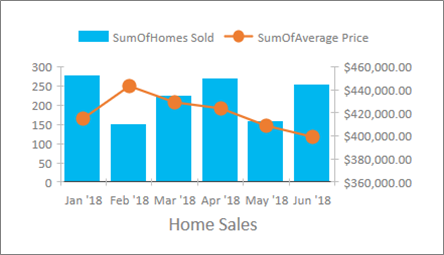
Ye preview dikhata hai ki aapke selected data se chart kaise dikhega.
📘 Want to Master Excel Fast? Join 5000+ learners & become Excel Pro in 30 Days!
🚀 Enroll Now🎨 Use Conditional Formatting
Excel me Conditional Formatting ek powerful feature hai jo automatically cells ka color, style aur icons change karta hai data ke rules ke basis par. Isse aap apne data ko instantly visually attractive aur easy-to-analyze bana sakte ho.
1. Highlight Rules
Example: 100 se upar ke values green ho jaye aur 50 se niche red.
2. Color Scales
Automatically gradient apply karo — low values light aur high values dark color.
3. Data Bars
Cells ke andar horizontal bars dikhte hain jo instantly comparison show karte hain.
4. Icon Sets
Use arrows ✅ 🔴 🟢 icons to quickly visualize performance ya progress.
✨ Example Preview

Yeh example dikhata hai kaise conditional formatting se data instantly samajhne layak ho jata hai.
📘 Want to Master Excel Fast? Join 5000+ learners & become Excel Pro in 30 Days!
🚀 Enroll Now🔍 Learn VLOOKUP (or XLOOKUP)
Excel ka VLOOKUP function sabse popular aur useful formulas me se ek hai. Iske through aap kisi bhi table me data ko quickly search karke fetch kar sakte ho. Latest versions me XLOOKUP aur bhi powerful aur flexible hai.
1. Formula Structure
=VLOOKUP(lookup_value, table_array, col_index, FALSE)
2. Lookup Value
Woh value jisko aap search karna chahte ho (jaise Student Name).
3. Table Array
Complete data ka range jisme search hoga (jaise A1:D20).
4. Column Index
Kaunsi column ka data return karna hai (jaise Marks column ka index).
5. Match Type
Generally FALSE use hota hai exact match ke liye.
💡 Pro Tip: XLOOKUP new Excel versions me aur powerful hai kyunki woh horizontally aur vertically dono direction me search kar sakta hai.
📘 Want to Master Excel Fast? Join 5000+ learners & become Excel Pro in 30 Days!
🚀 Enroll Now🚫 Remove Duplicates
Excel me kabhi-kabhi data repeat ho jata hai jo report ko messy aur inaccurate bana deta hai. Remove Duplicates feature ki madad se aap ek click me duplicate values clean kar sakte ho.
1. Select Data
Woh range select karo jisme duplicate values remove karni hain.
2. Go to Data Tab
Ribbon me Data tab open karo aur Remove Duplicates button par click karo.
3. Choose Columns
Aapko specify karna hoga kis column me duplicates check karna hai (jaise Name ya Email).
4. Clean Data
OK press karte hi Excel duplicate entries remove kar dega aur summary show karega.
💡 Pro Tip: Duplicate remove karne se pehle hamesha apne data ka backup bana lo taaki original records safe rahe.
📘 Want to Master Excel Fast? Join 5000+ learners & become Excel Pro in 30 Days!
🚀 Enroll Now✨ Bonus Excel Tips for Beginners
Excel ke basics ke alawa kuch smart tricks bhi hain jo aapka kaam aur tez bana denge. Ye tips beginners ke liye golden shortcuts hain.
Use Keyboard Shortcuts: Ctrl + T (Table), Ctrl + D (Fill Down), Ctrl + Z (Undo).
Apply Filters Quickly: Data ko analyze karne ke liye Ctrl + Shift + L use karo.
Find & Replace: Large sheets me specific data ko turant dhoondhne ke liye Ctrl + F aur replace ke liye Ctrl + H.
Format Painter: Ek cell ka formatting dusre cells me copy karne ke liye use karo.
AutoFill Magic: Dates, Numbers, ya Custom Series ko drag karke instantly fill karo.
💡 Pro Tip: Excel shortcuts aur tricks ko daily use karoge toh speed automatically improve hogi.
📘 Want to Master Excel Fast? Join 5000+ learners & become Excel Pro in 30 Days!
🚀 Enroll Now❓ FAQs About Excel Tips for Beginners
Beginners ke common questions aur unke simple answers niche diye gaye hain. Ye FAQs specially Excel tips for beginners ko dhyan me rakhe gaye hain, taaki aapko Excel use karte waqt quick help mile.
Sabse best way hai Excel ko practice karna. Daily use me formulas aur features apply karo, free resources aur Excel tips for beginners blogs/tutorials dekho.
Nahi, Excel ko use karne ke liye coding ki zaroorat nahi hai. Lekin advanced level par VBA ya Macros help karte hain. Lekin basic Excel tips for beginners ke liye coding ki need nahi hoti.
Rozana use karke shortcuts easily yaad ho jate hain. Common shortcuts (Ctrl + C, Ctrl + V, Ctrl + Z, Ctrl + F) se start karein. In Excel tips for beginners ke through aap practice kar sakte ho.
SUM, AVERAGE, IF, VLOOKUP/XLOOKUP jaise functions beginners ke liye sabse useful hote hain. Ye basic Excel tips for beginners ka part hain.
Haan, Microsoft ka Excel Online free version available hai jise web browser me use kar sakte ho. Beginners ke liye ye ek perfect option hai Excel tips for beginners ko apply karne ke liye.
🚀 Conclusion: Start Practicing Excel Today
Excel shuru me thoda tough lag sakta hai, lekin jab aap basics seekh lete ho to ye ek powerful tool ban jata hai. Ye Excel tips for beginners aapko fast, confident aur professional banayenge.
📌 Action Steps:
- Open Excel right now aur ek naya sheet banao.
- Upar diye gaye 10 tips ko ek-ek karke practice karo.
- Sample data download karke charts aur formulas test karo.
Ready to Master Excel?
Chhote steps se shuru karo, consistency rakho aur Excel ko apna career booster banao.
📥 Download Free Excel GuideAur detail me Excel explore karna chahte ho? Check out the Microsoft Excel Official Page aur Excel Support Tutorials .
📘 Want to Master Excel Fast? Join 5000+ learners & become Excel Pro in 30 Days!
🚀 Enroll Now